Track Partial Payments: Always Know What's Still Owed
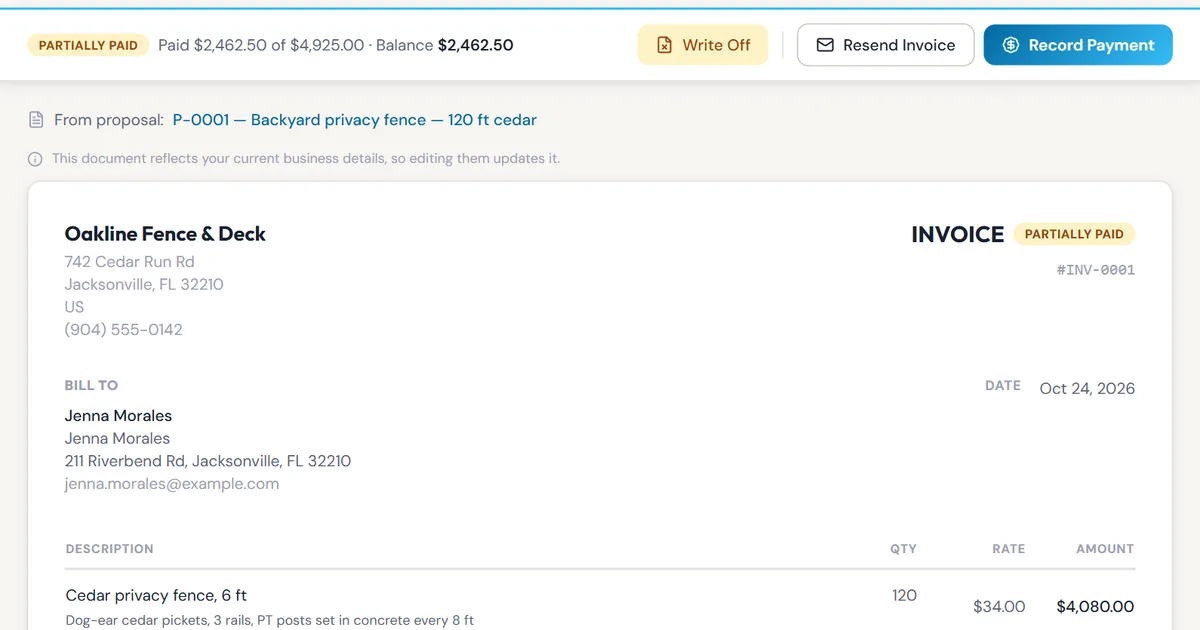
A deposit is a beautiful thing. Remembering exactly how much of it you got, three weeks and two job changes later, is less beautiful.
Short answer: record each payment on the invoice when it arrives and let the invoice do the subtraction. In simpleWhirks Proposals, Record Payment logs a deposit or part payment in seconds, and the invoice always shows what’s paid and what’s still owed.
What problem does this solve?
Deposits and progress payments are normal in the trades. Keeping track of them usually isn’t:
- The balance lives in your head. Or on a sticky note in the truck, which is worse.
- “I already paid you half.” Did they? Was that the 40% or the 50%? Was it this job or the last one?
- The final invoice asks for the full amount. Now you’re apologising instead of collecting.
What does it do?
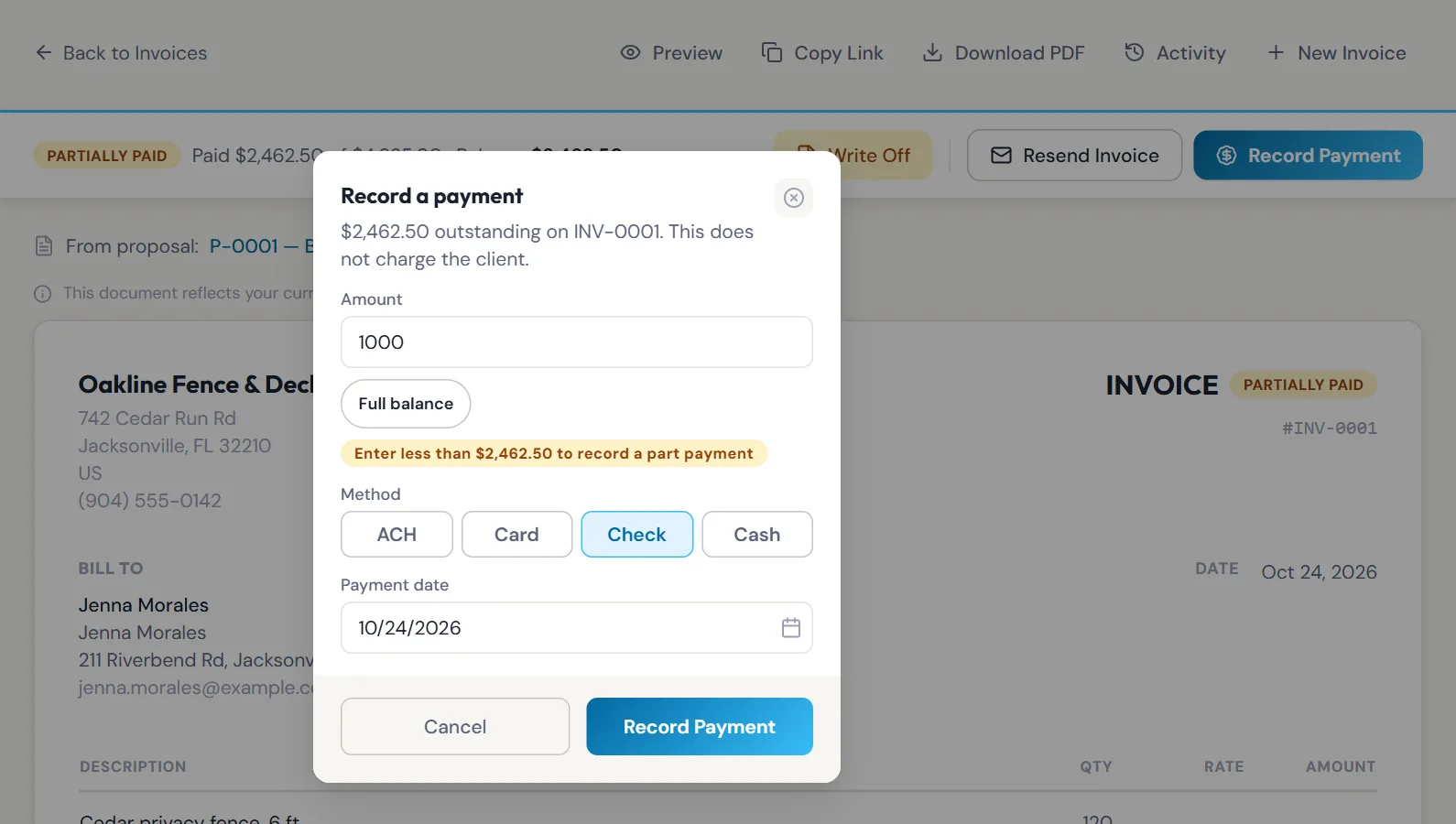
1. Record any payment, in full or in part. Open a sent invoice and click Record Payment. The amount starts at the full balance, which is the usual case. Type less and it becomes a part payment. Pick ACH, Card, Check or Cash, set the date the money arrived, and save. It says right there that this doesn’t charge the client.
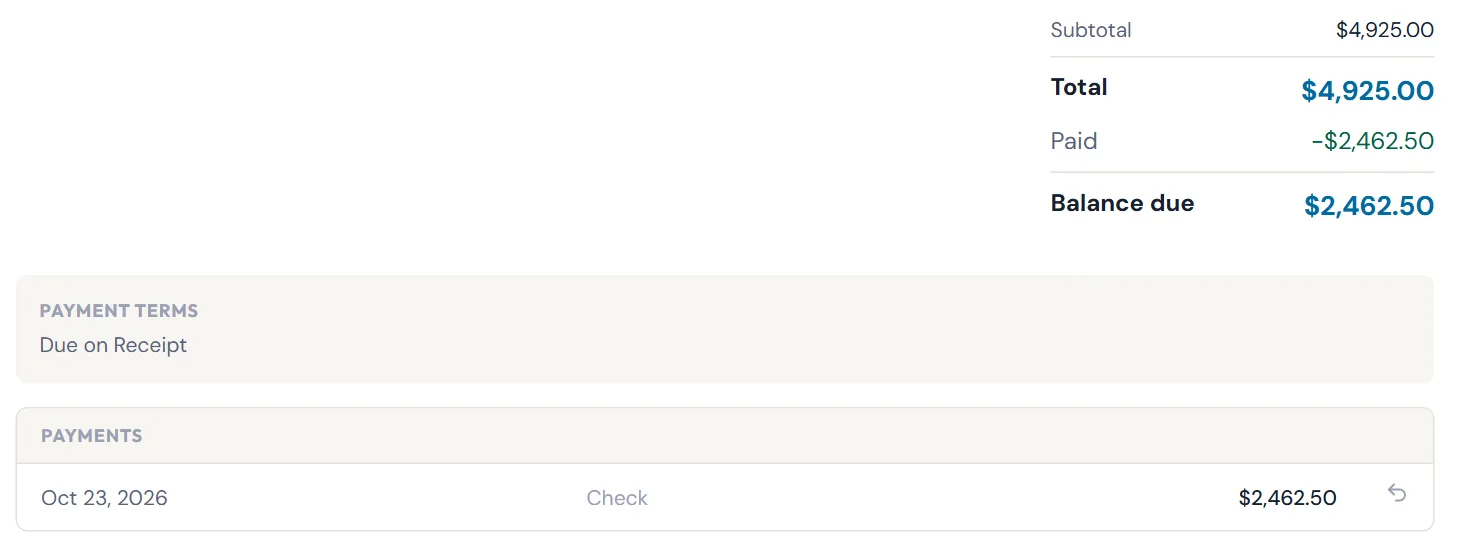
2. See the balance at a glance. The invoice switches to Partially Paid and the bar across the top spells it out: what’s been paid, out of what total, and what’s left.

Below the totals, every payment is listed with its date, method and amount. When the balance reaches zero, the invoice turns Paid on its own.
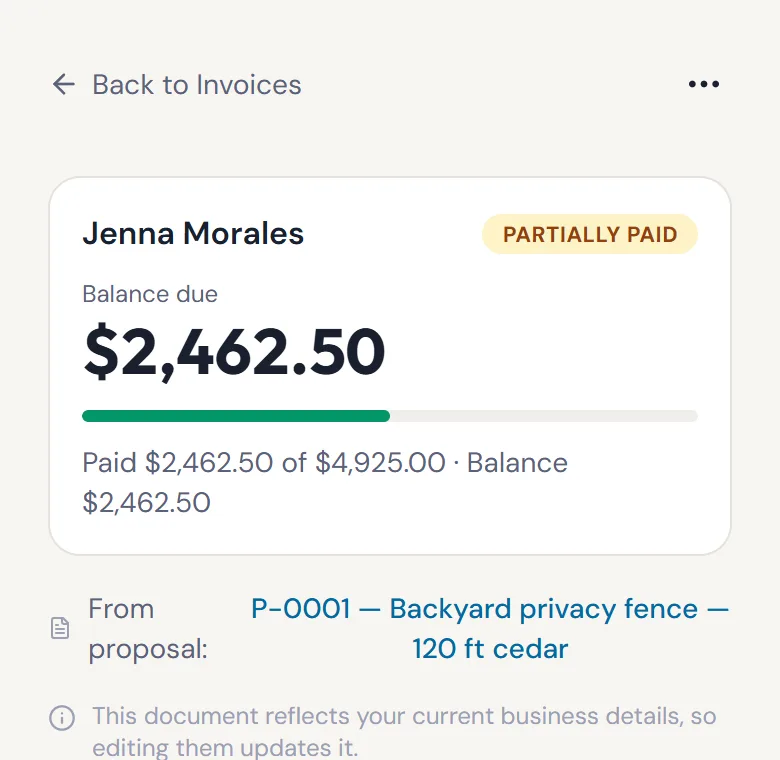
3. Check it from the job site. On a phone, the balance due is the first thing on the invoice, with a progress bar so you can answer “what do I owe?” before the customer finishes asking.
Who is it for?
- The deck builder who takes 50% up front. Log the deposit the day it clears, then send the balance invoice at completion.
- The remodeler billing in stages. Record each progress payment as it lands and the balance keeps itself honest.
- The HOA or property manager client who pays in pieces. Every check is listed with its date, so “we sent it on the 3rd” is easy to confirm.
What should I know before I rely on it?
- You record payments; Proposals doesn’t collect them. There’s no online payment from the invoice. It tracks money you’ve already received.
- Payments go on sent invoices. Send the invoice first, then record against it. Resending a part-paid invoice emails the client the balance, not the original total.
- Mistakes are fixable, not hidden. Remove a wrong payment with the undo arrow. The Activity log keeps both the payment and the removal.
- Overpayments are refused. You can’t record more than the balance.
- Owners and admins can write off a balance you’ve given up on. Payments already recorded stay put.
- It doesn’t post to your books yet. Proposals invoices don’t flow into simpleWhirks Books today, so record the deposit in your bookkeeping too.
How do I start?
Sign up for Proposals. Invoice an accepted quote in one click (here’s how quotes get accepted online) or start a standalone invoice from Invoices → New Invoice. Send it, then click Record Payment when the deposit arrives. Want that deposit sooner? Read how to get paid faster.
About the author. Travis Sutphin is the CTO and co-founder of simpleWhirks, and builds the parts of Proposals that keep track of who paid what. More from Travis.
Frequently asked questions
Related reading
Online Quote Acceptance: Get a Yes Without Paperwork
simpleWhirks Proposals lets clients accept your quote online with a typed name, then turns the accepted quote into an invoice in one click. No printing, no chasing.
Hub · Product NewsOne Login for Every App: Set Up Your Business Once
simpleWhirks Hub gives you one login for Books and Proposals. Enter your business details once, invite your team, and every app stays in sync. Free to start.
Hub · Product NewsTry simpleWhirks Free: Click Around a Demo First
Try simpleWhirks Books and Proposals before you sign up. Click around a sample business with no account, then follow a guided tour to see how each part works.