How to Switch from QuickBooks to simpleWhirks Books
If you’ve decided to leave QuickBooks Online for simpleWhirks Books, the actual migration takes less time than most operators expect. The fear of losing data, breaking your CPA workflow, or ending up with two half-functioning bookkeeping systems is what stops most owner-operators from switching, not the technical difficulty.
This is the complete playbook. We co-wrote it because the migration touches two distinct concerns: the technical side (exports, imports, file formats, data integrity) and the accounting side (opening balances, trial balance, chart of accounts mapping, CPA continuity). Travis owns the first; Garrett owns the second. If you follow all 10 steps in order, you’ll be running on simpleWhirks Books with balances that match your bank, ready for your next month-end. For a single-owner business with clean books, plan an afternoon.
The patterns we describe below are the ones our team encounters consistently when small-business owners migrate. The mistakes are predictable. The fix for almost every problem is doing the steps in the order we recommend, not reordering them.
A note on pricing and product details. This post cites QuickBooks Online plan prices and Intuit product policies at the time of writing. Intuit raises prices most years and adjusts product details periodically; verify on Intuit’s pricing page before relying on these numbers for a budget or migration plan.
What comes across, and what doesn’t
Before you start, know what Books imports today so nothing surprises you halfway through:
- Comes across by CSV: your chart of accounts, either your opening balances (from the trial balance) or your past journal detail if you want it (one or the other for any period, never both), and your bank statements.
- You add by hand: the customers you still invoice and the vendors you still pay. Books doesn’t import customer or vendor lists yet.
- Works differently in Books: Books doesn’t connect to bank feeds. Each month you download a statement CSV from your bank and import it into that account’s register. It takes a couple of minutes per account.
Before you start: is this the right time to switch?
The cleanest moments to switch bookkeeping software are the first day of a fiscal year, the first day of a new quarter, or immediately after an estimated tax filing. Mid-period switches are doable but harder because every report you run will span two systems.
Three situations should pause you:
You run payroll inside QuickBooks. Switch only at year-end. QuickBooks Payroll handles tax filings, W-2s, 1099s, and quarterly 941 forms; splitting those across two systems mid-year creates filing complications and possibly amended returns. Books doesn’t run payroll, so you’ll also need a payroll provider lined up before you leave.
You’re more than two months behind on bookkeeping. Clean up first. Migrating messy books just moves the mess. Reconcile through the last completed month before you even start the export. This is the single biggest mistake we see.
You have an active audit or recent IRS notice. Don’t switch in the middle of an audit. The auditor wants to see records in the system they were created in. Resolve the audit, then migrate at the next quarter-end.
If none of those apply, plan an afternoon.
What you need before starting
Five things. Have them ready before you open QuickBooks:
- Administrative access to your QuickBooks Online account (Master Admin or Company Admin role)
- Bank statement covering your chosen transition date (the most recent statement that includes month-end is ideal), plus the statement CSV for the days after it
- Your most recent prior-year tax return (for verifying balance sheet equity)
- A simpleWhirks account, created but not yet populated with data
- Two to four uninterrupted hours
Don’t try to do the migration in 15-minute chunks across a week. You’ll lose context between sessions. Block the time.
Phase 1: Prepare QuickBooks for migration
Step 1: Reconcile QuickBooks through the last completed month
Open QuickBooks Online. Navigate to Banking. For every bank account and credit card, confirm the reconciliation is complete through the end of the prior month. The reconciliation indicator (a small green check or “R” flag on transactions) should cover everything before your transition date.
If any account is unreconciled, reconcile it now. This is non-negotiable. Migrating with an unreconciled account guarantees opening balances won’t match in Books, and you’ll spend longer fixing that than reconciling cleanly in the first place.
Step 2: Pick your transition date
Choose the last day of a completed month or quarter. April 30 (M4 close), June 30 (Q2 close), September 30 (Q3 close), and December 31 (year-end) are the cleanest. The transition date defines two things: the date your QuickBooks data ends, and the date of your opening entry in simpleWhirks Books. Date the opening entry on the transition date itself, not the day after. A QuickBooks trial balance includes your year-to-date income and expense accounts, and dating the entry on the transition date keeps them in the period they belong to.
The transition date should be at least a week in the past. Don’t pick today’s date. You want your bank statement for that period to be available and your books to be reconciled through it.
Step 3: Clean up uncategorized transactions and turn on account numbers
Run a profit and loss report in QuickBooks for the year to date. Scroll to the bottom. If you see “Uncategorized Income” or “Uncategorized Expense” categories with any non-zero amount, click in and recategorize every transaction. Same for any “Ask My Accountant” or unspecified-category lines.
Then turn on account numbers: Settings → Account and settings → Advanced → Chart of accounts → Enable account numbers. Give every account you use a number. Books matches imported entries to accounts by number, so an account without one has nothing to match on.
Phase 2: Export data from QuickBooks
Step 4: Export the chart of accounts to CSV
In QuickBooks Online: Settings (gear icon) → Chart of Accounts → click the export icon (the small arrow above the list) → save as CSV. Check that the account numbers are in the file.
Open the CSV in a spreadsheet and review it. Most home-based businesses have between 60 and 100 accounts in QuickBooks but only actually use 15 to 30. Note which accounts have activity (you can see this from the trial balance in the next step); the unused ones don’t need to migrate.
Then fix the Type column. Books accepts seven types: Asset, Liability, Equity, Income (or Revenue), Cost of Goods Sold (or COGS), Expense, and Other Expense. QuickBooks uses more detailed types, and Books rejects them as invalid, so change them before uploading:
- Bank, Accounts receivable (A/R), Other Current Assets, Fixed Assets become Asset
- Credit Card, Accounts payable (A/P), Other Current Liabilities, Long Term Liabilities become Liability
- Other Income becomes Income
Equity, Income, Cost of Goods Sold, Expenses and Other Expense can stay as they are.
Step 5: Export the trial balance as of the transition date
Reports → Trial Balance. Set the date to your transition date. Export to CSV.
This is the most important file in your migration. The trial balance shows every account in your chart of accounts with its current debit or credit balance as of that date. Those numbers become your opening balances in Books.
Open the trial balance and verify two things: (a) the total debits equal the total credits at the bottom (if they don’t, QuickBooks is broken and a CPA needs to look before you migrate), and (b) the bank account balances match what your bank statement says for that date. Discrepancies here are the second-most-common source of migration problems.
Step 6: Or export your journal history instead (optional)
Choose one approach, not both. Either import the trial balance as of your transition date (Step 5), or import a trial balance as of the day before your history starts and then the history through the transition date. Importing the transition-date trial balance and the history for the same period counts every balance twice.
If you want past detail inside Books for comparison reports, export a trial balance as of the day before your history starts, then run Reports → Journal from that start through your transition date and export it to CSV. Twelve to 24 months is the sweet spot; prior years are in your filed tax returns. If you only need to start fresh from the transition date, skip this file and use the Step 5 trial balance.
The QuickBooks Journal export won’t import as-is. Books needs a valid date and an account number on every row, and groups rows into entries by transaction number. QuickBooks’ Journal report usually puts the date and Num only on a transaction’s first line and shows the account as “number name” in one cell. Reshape it in a spreadsheet first: fill the date down every row, put the account number in its own column, and give every transaction a unique number.
While you’re in Reports, export your customer and vendor lists too. Books won’t import them, but they’re a handy checklist when you add the customers you still invoice and the vendors you still pay.
Phase 3: Import into simpleWhirks Books
Step 7: Create your simpleWhirks Books account
Sign up free at simplewhirks.com and open Books. Your business name, address and logo are set once in your simpleWhirks account and appear in every app.
Step 8: Import the chart of accounts
Go to the Accounts page and choose Import Chart of Accounts. Upload the CSV from Step 4, with its Type column already changed to Books’ types, then map its columns: account number, name and account type. Books shows a preview of every account before it saves anything. Fix anything that looks wrong in the spreadsheet and upload again rather than patching it afterwards.
Step 9: Import your opening balances or history
Go to the Journal page and choose Import Journal Entries.
Opening balances. Lay the trial balance out as one journal entry: one row per account, with the date (your transition date itself, so year-to-date income and expenses stay in the period they belong to), the account number, and the debit or credit amount, all sharing the same transaction number. Upload it and map the columns. Books groups the rows into one entry and shows its total debits and credits; they must equal each other and match the QuickBooks trial balance. If Books can’t find an account number, it tells you before anything is saved.
Or history, if you chose it in Step 6. Upload the trial balance as of the day before your history starts as the opening entry, dated that day. Then upload the reshaped journal CSV from Step 6, with a date and account number on every row. Each transaction becomes one entry, grouped by its transaction number. Don’t also import the transition-date trial balance; the history already brings every account to that balance.
Step 10: Import your bank statement and check the balance
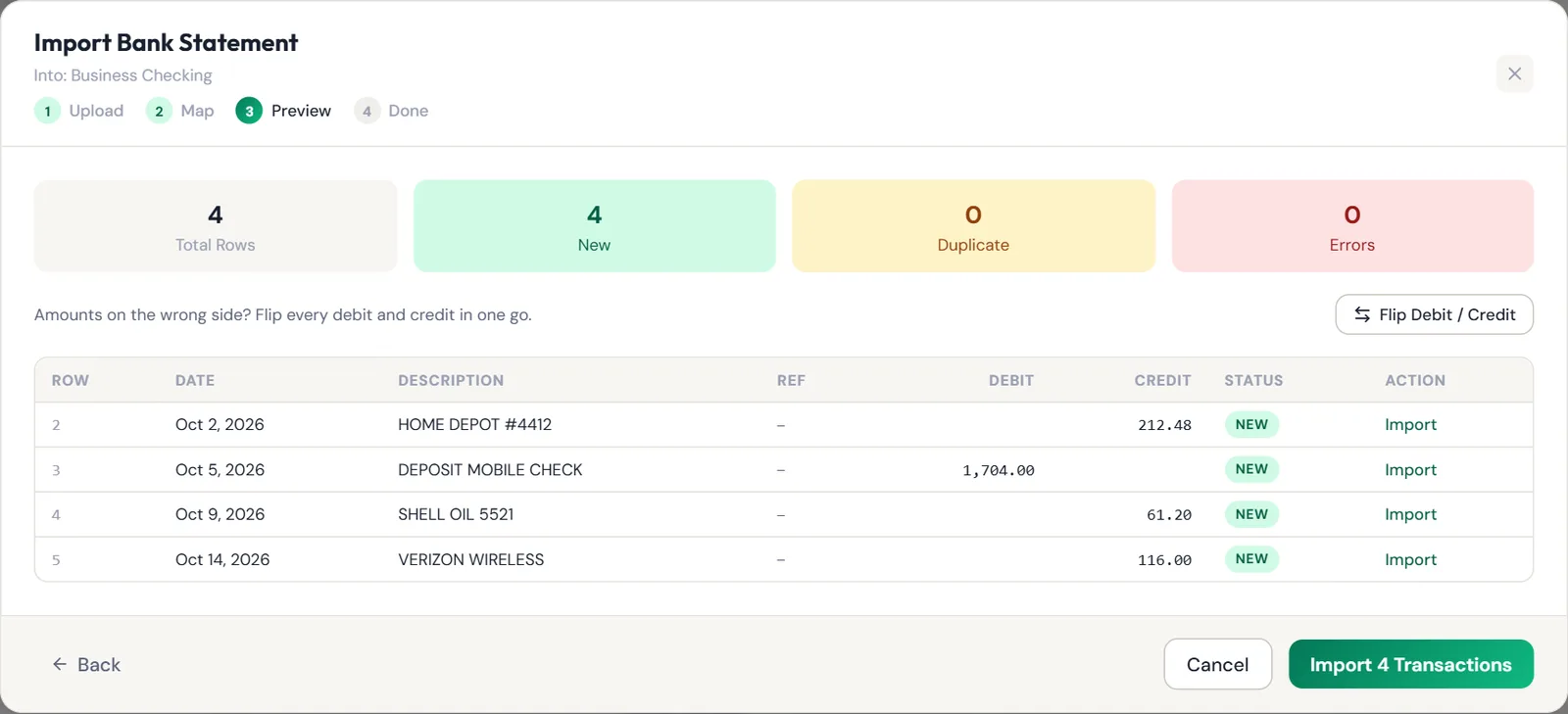
Open the register for your bank account and choose Import Bank Statement. Upload the CSV from your bank covering the days after your transition date, map the date, description and amount columns, and import.
Now compare. Open the Balance Sheet and check the bank account’s balance, which includes your opening entry, against the ending balance on your bank statement. The register itself shows only the activity since your transition date, so its total won’t equal the statement. If the Balance Sheet figure doesn’t match, the usual culprit is a single transaction that crossed midnight on the transition date and is now in both periods. Find it, decide which side it belongs on, and remove it from the other.
From here on, this is your monthly routine: download the statement CSV from your bank and import it into the register.
After the migration: the 30-day sanity check
For the first 30 days after the switch, keep QuickBooks active and parallel-run.
Every Friday afternoon, run a profit and loss report in both QuickBooks and Books for the period since the transition date. The two reports should show identical revenue, identical expenses, and identical net profit. If they don’t, find the discrepancy that week, not in a month.
After 30 days of matching reports, export your backups and cancel. Before canceling, export PDF backups of: prior-year P&L, prior-year balance sheet, general ledger for the prior year, and the most recent three years of tax-return supporting documentation. Save them locally and in cloud storage.
Intuit keeps your QuickBooks file read-only, with export, for one year after cancellation, after which it’s deleted. Your locally saved PDFs are your only record of the QuickBooks history after that one-year window.
What doesn’t transfer (and how to handle it)
Six things don’t come across through the CSV imports:
-
Customer and vendor lists. Add the customers you still invoice and the vendors you still pay as you need them. Most home-based businesses have a handful of active ones; the rest of the QuickBooks list is history.
-
Recurring transaction templates. Books doesn’t have recurring transactions yet. Recurring invoices are on our roadmap. Until then, enter repeating items when they happen.
-
Custom report layouts. Books reports have their own layouts. Standard reports (P&L, balance sheet, trial balance, ledger) are one click in Books. If you had heavily customized reports in QuickBooks, this is the moment to ask whether you actually used them.
-
Attached receipts and PDFs. These are stored in QuickBooks but not exported by the CSV. If you need digital copies, download them individually before canceling QuickBooks. For most home-based operators, the bank statement plus the categorized transaction record is sufficient documentation; the receipts are belt-and-suspenders.
-
Third-party app integrations. Bill.com, payroll providers, time-tracking apps and e-commerce integrations don’t connect to Books. Export from those tools and record the totals in Books instead.
-
Budget data. Books doesn’t have budgets. Keep yours in a spreadsheet if you actively use one. Many home-based operators don’t.
How does a CPA fit into this?
If your CPA actively uses your QuickBooks file (logging in regularly, not just at year-end), have one conversation with them before you switch.
The conversation has two parts:
Part 1, the practical question. Ask: “If I send you a clean P&L, balance sheet, and transaction list as CSVs every quarter, can you do my Schedule C from that without extra hours?” Most CPAs will say yes. A few are deeply embedded in QuickBooks workflows and will say no. For the no-CPAs, the cost of switching is the hourly difference in their bill. Do the math; it’s often still favorable.
Part 2, the structural question. Ask: “Is there anything specific to my QuickBooks setup (opening equity, retained earnings, specific account classifications) that I should preserve when I migrate?” Most home-based operators have nothing here. A few do. Catching it before the migration is much cheaper than fixing it after.
If your CPA has never seen your QuickBooks file outside of tax season, this conversation is optional. The exported reports tell them everything they need.
Common migration mistakes (don’t repeat these)
Eight failure modes account for almost every migration that goes wrong:
-
Migrating without reconciling QuickBooks first. Books shows balances that don’t match the bank statement, and you spend three hours figuring out why. Reconcile first. Always.
-
Picking today as the transition date. The bank statement covering today doesn’t exist yet, and checking balances requires it. Pick a date at least one week in the past, ideally a completed month-end.
-
Leaving uncategorized transactions in QuickBooks. They come across in a catch-all account and have to be re-categorized by hand. Clean up before exporting.
-
Exporting without account numbers. Books matches imported entries to accounts by number. Turn numbers on in QuickBooks before you export anything.
-
Skipping the parallel sanity check. Cancel QuickBooks immediately, then discover three weeks later that an account didn’t import correctly. Keep QuickBooks active for at least 30 days.
-
Importing the same bank statement days twice. If your history export and your first bank statement overlap, the same transactions land twice. Start the bank statement import on the day after your transition date.
-
Migrating mid-payroll-period. Quarterly 941 filings and year-end W-2s get split across two systems. If you run payroll inside QuickBooks, switch at year-end and only at year-end.
-
Not exporting PDF backups before canceling QuickBooks. Intuit holds your data for one year after cancellation, then deletes. Locally saved PDFs are your permanent record.
Frequently asked questions about switching from QuickBooks
Will I lose any data switching from QuickBooks to simpleWhirks Books?
No, your core accounting data comes across: the chart of accounts and either your opening balances from the trial balance or, if you want it, your past journal detail, all as CSV files. Some things don’t come across and have to be handled by hand: customer and vendor lists (add the ones you still bill or pay), recurring transaction templates, custom report layouts, attached receipts and PDFs, third-party app integrations, and budgets. Your historical QuickBooks file remains accessible through Intuit for at least one year after canceling, so you have a fallback if you need to look up an old invoice.
Do I have to clean up my QuickBooks file before switching?
Yes, always. The single biggest migration mistake is exporting messy data into a new tool, which gives you messy data in a new tool plus the time you just spent migrating. Before you start the switch, reconcile QuickBooks through the last completed month, fix any uncategorized transactions, clear out any “Ask My Accountant” items, and confirm the opening balance equity matches what you expect. The cleanup typically takes 1 to 4 hours depending on how behind you are. Skipping it is what turns an afternoon migration into a lost weekend.
When is the best time of year to switch bookkeeping software?
The best moments are: (1) the start of a new fiscal year (January 1 for most small businesses), which lets you start with clean opening balances and a fresh chart of accounts; (2) the first day of a new quarter, which gives you clean quarter-end reports; or (3) immediately after an estimated tax filing (April 15, June 15, September 15, and January 15 of the following year, with weekend or holiday shifts as the IRS publishes), so the prior quarter’s numbers are already locked in. Avoid switching in the middle of a tax filing period or while you’re owed a refund. If you run payroll inside QuickBooks, only switch at year-end so payroll tax filings and W-2s aren’t fragmented across two systems.
What happens to my QuickBooks subscription when I switch?
Keep your QuickBooks subscription active for at least one full month after the switch, ideally three. The first month is a sanity check: run reports in both systems and confirm the numbers match. After the parallel run, export your backups and cancel. Intuit keeps your file read-only, with export, for one year after cancellation, after which it’s deleted. Export a final backup before canceling so you have a permanent local copy of your QuickBooks data.
Will my CPA still be able to use my books after I switch?
Yes, as long as you can produce three standard reports as CSVs or PDFs: a profit and loss statement, a balance sheet, and a transaction detail by category report. simpleWhirks Books produces all three. Most CPAs prefer QuickBooks because their staff is trained in it, but virtually all CPAs work from exported reports. Before switching, ask your CPA directly: “If I send you a clean P&L, balance sheet, and transaction list in CSV format, can you do my year-end without extra hours?” Most will say yes. If yours says no, that’s important data for your decision.
How do I handle opening balances correctly?
Opening balances are the most error-prone part of any migration. The rule is: pick a transition date that’s the end of a completed accounting period (the last day of a month or quarter), pull a trial balance from QuickBooks as of that date, and enter those balances in simpleWhirks Books as one opening journal entry dated on the transition date, so year-to-date income and expenses stay in the period they belong to. Every account balance, bank, credit card, equity, retained earnings, must match. Import either that trial balance or your journal history for the same period, never both, or every balance is counted twice. If the opening trial balance doesn’t balance (debits don’t equal credits), something is wrong in QuickBooks and you need to fix it before migrating, not after. This is where a CPA is worth the call.
Can I keep my historical QuickBooks reports after canceling?
Yes, but you have to export them first. Before you cancel your QuickBooks subscription, export PDFs of your annual P&L, balance sheet, general ledger, and the prior three years of tax-filing supporting documentation. Save them locally and in cloud storage. The IRS expects you to retain business records for three years minimum, seven for safety. Once you cancel QuickBooks, Intuit holds your data for one year and then deletes it. After that point, your locally saved PDFs are your only record of the QuickBooks history, so do this step before you cancel, not after.
About the authors
Travis Sutphin is the CTO and co-founder of simpleWhirks. He leads engineering on the Books product, including its import tools. He writes about the technical side of bookkeeping software: imports, schema decisions, and the tradeoffs of picking a tool sized to the way owner-operators run their books. Read more · LinkedIn
Garrett Truman is a licensed Florida CPA (License #AC45159) and co-founder of simpleWhirks. He has spent over twenty years working with small businesses in finance and accounting roles, including as virtual CFO and the author of The Little Simple Startup Book. He works primarily with home-based businesses, trades, and owner-operators in northeast Florida. Read more · LinkedIn
Pricing, IRS guidance, and Intuit product details change. This post is reviewed periodically against the cited primary sources; use the links below to verify the current values before relying on them for a migration plan.
Frequently asked questions
Defined Terms
- Opening balance
- The dollar amount in each account on the first day of the new bookkeeping period. When migrating from one tool to another, opening balances are pulled from the trial balance of the prior system on the transition date and entered as starting values in the new system, dated on that same transition date. Getting opening balances right is the single most important step of any migration.
- Trial balance
- A report listing every account in the chart of accounts with its current debit or credit balance. Total debits must equal total credits; if they don't, the books are broken. The trial balance as of your transition date defines your opening balances in the new system.
- Chart of accounts (COA)
- The master list of every income, expense, asset, liability, and equity account a business uses. The COA in simpleWhirks Books mirrors the structure of QuickBooks but is generally smaller for home-based operators (15 to 30 accounts instead of 60 to 100).
- Bank statement import
- Loading the transactions from a CSV file you download from your bank into your bookkeeping software. simpleWhirks Books works this way instead of connecting to a live bank feed: each month you download the statement CSV and import it into that account's register.
- Journal entry
- A transaction that records a debit to one account and a credit to another. Used for adjusting entries, opening balances, and corrections. In a migration, your opening balances go in as a single journal entry built from the trial balance.
Sources Cited
Related reading
QuickBooks Alternatives for Small Business in 2026
An honest, builder's-eye comparison of the best QuickBooks alternatives for small business in 2026: pricing, fit, what transfers, and what doesn't.
Books · Home-Based BusinessWhy Home-Based Businesses Are Outgrowing QuickBooks
QuickBooks Online was built for businesses ten times the size of a home-based operator. Here's how to tell if you've outgrown it, and what you actually need.
Books · Bookkeeping BasicsBookkeeping Basics for Non-Accountants
A plain-English bookkeeping primer for owner-operators. The five terms, three reports, and one daily habit that cover 90% of what you actually need.